

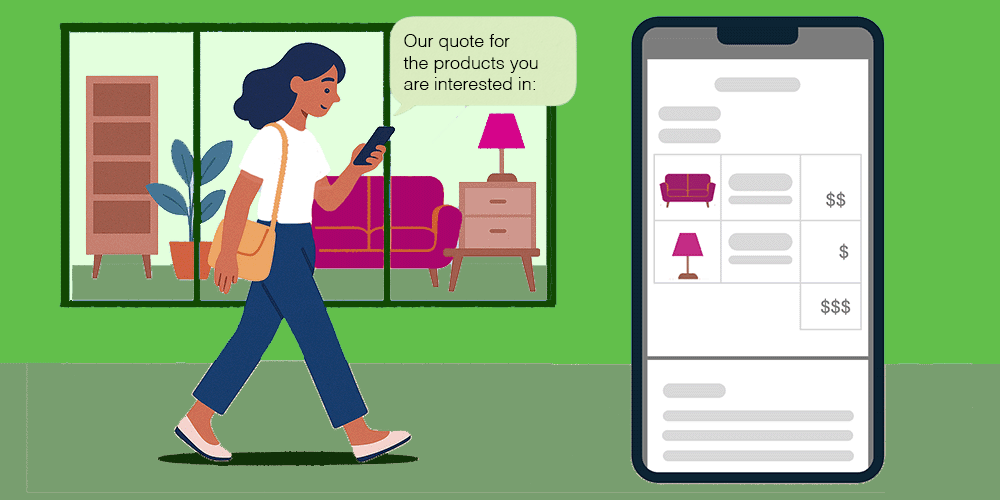
Some of your customers may prefer to receive quotes via WhatsApp instead of email. Until now, sending quotes this way required either manually downloading the file to your phone and sending it yourself, or setting up a complex and costly integration.
Now, TeamGram CRM offers a new, free, and easy method.
With the newly added “Send Using WhatsApp” option in TeamGram CRM, you can share your quotes via WhatsApp in just seconds.
WhatsApp Integration: What You Should Know
WhatsApp is the world’s most widely used messaging app. However, Meta (the owner of WhatsApp and Facebook) enforces strict rules around commercial use. Failing to comply with these rules may result in your account being suspended, cutting off communication with customers and leading to lost sales.
That’s why it’s important to use the correct account type and follow the rules.
WhatsApp Account Types: Which One Is Right for You?
1. Personal WhatsApp Accounts (Free)
- Can be created by anyone
- Usable via phone and desktop apps
- Cannot be integrated with CRM systems
- Belongs to the individual. If an employee leaves the company, customer communication may be lost with them
2. WhatsApp Business App (Free)
- Designed for small businesses
- Can be linked to a company phone number
- Personal and business accounts can run on the same device
- Not allowed to integrate with CRM systems
3. WhatsApp Business Platform (Paid)
- Intended for large organizations with very high messaging volume
- Requires working with Meta-approved service providers
- Messages must use pre-approved templates
- Free-form messaging is only allowed within 24 hours after the recipient responds to a template message
- CRM integration is possible through services purchased from Meta or its approved providers
New: Send Quotes Using Your Free WhatsApp Account
Previously, to send a quote via WhatsApp, you had to either pay for an integration or manually share the file. Not anymore.
With TeamGram CRM’s Pro and higher plans, a new “Send Using WhatsApp” option is available on the quote sending screen. It works with both personal and WhatsApp Business App accounts.
What You Need to Use This Feature
- An active WhatsApp account (Personal or Business App)
- The WhatsApp desktop app installed and running on your computer (Download here)
- A CRM plan that supports PDF quote generation (available in Pro and higher plans)
Step-by-Step: Sending a Quote via WhatsApp
- Create your quote in TeamGram CRM and set its status to Final
- Click the Send to Customer button and select Send Using WhatsApp
- A window will appear showing saved phone numbers for the recipient. Choose the correct one or enter a new number (must start with + and include country code, e.g., +14561234567)
- Your computer’s WhatsApp app will open automatically, and the quote link will appear in the message box
- Edit the message if needed, then hit Send (Note: The message is not sent until you click Send manually)
What Will Your Customer See?
The customer can click the link in the message to view the quote in PDF format and save it to their phone if they wish.
Once the quote’s validity period expires, the link will no longer work. However, if the customer downloaded it earlier, they’ll still be able to view the PDF.
Conclusion
You can now send quotes via WhatsApp quickly, easily, and for free using TeamGram CRM. Setup is simple, and usage is hassle-free—especially ideal for businesses with low messaging volume.
Thanks to this new feature from TeamGram CRM, it’s easier than ever to get your quotes to your customers.