

AI Is Changing the Way We Work
In a short time, AI has gone from a curiosity to a work tool we can’t do without. Over the past year, both what AI can do and the places we use it at work have grown quickly.
This shift is also shaping what we expect from the other tools we use. Today we know that pulling up a report, checking where a customer stands or planning the next step can be as easy as asking one question. We expect our tools to understand us in our own words.
TeamGram CRM is right in the middle of this change. Sales teams spend their days on meetings, quotes and follow-ups. That’s also where the team’s most valuable knowledge comes from. The easier it is to reach that knowledge and keep it up to date, the more time is left for customers.
That’s why we built TeamGram Assistant: so you can talk to your CRM, get to the information you need right away and hand routine work over to it.
Meet TeamGram Assistant
TeamGram Assistant is the AI helper built into your CRM. You open it from the Assistant tab in the left menu and write what you need in everyday language. The Assistant looks through your data, answers your question or prepares the work for you.
After the first answer, you can keep the conversation going to narrow down the results. Just say “Show only the ones over £50,000.” or “Who owns the highest-value opportunity?” That way you keep working in a single chat without breaking your flow.
The Information You Need Is One Question Away
The Assistant answers your questions based on the data in your CRM. If you like, it can also research things on the web for you.
Where your opportunities stand. See the total of your open opportunities, which ones are expected to close this month and what stage they’re in, all with one question.
“What’s the latest on our open opportunities? Can you summarize them?”
Your team’s agenda and your priorities. Ask what your team is busy with this week, or what you need to get done today.
“What is the sales team working on this week?”
Meeting prep. The Assistant brings together past conversations, notes, emails, open opportunities and quotes for the customer. When needed, it also looks up current information about the company on the web and summarizes the points you should focus on in the meeting.
“I have a meeting with ABC on Monday. Can you help me prepare?”
Keep Your CRM Records Up to Date
The Assistant doesn’t just give you information; it also prepares your everyday CRM work for you. You say what you need, and it creates or updates the record.
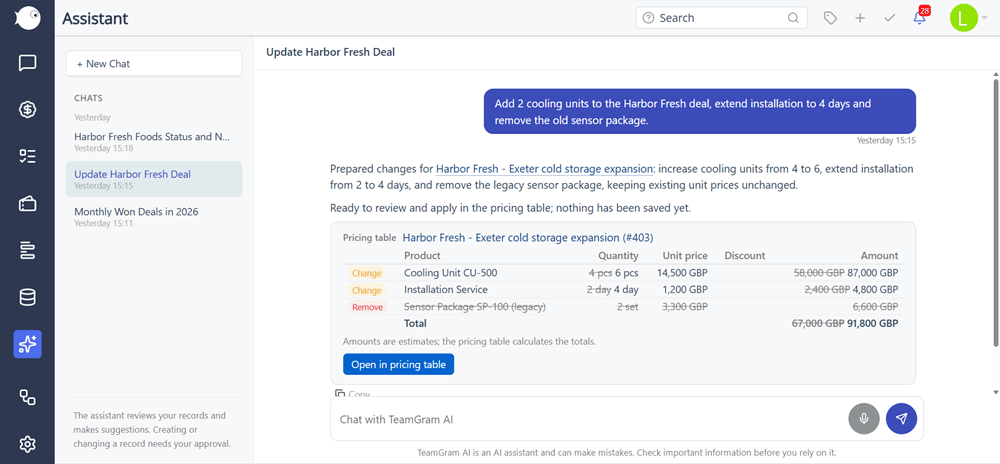
Update your opportunities in one sentence. Create a new opportunity, change its stage or edit its pricing table. The Assistant shows what changed, what was removed and what was added, along with the new total; you review it and apply it.
“Add 2 cooling units to the Harbor Fresh opportunity, extend installation to 4 days and remove the old sensor package.”
Log conversations and plan the next step. After a meeting or a phone call, tell the Assistant what was discussed. The Assistant adds the note to the right customer record and schedules the follow-up activity, linked to the related contact and opportunity. Once you click Save, it goes on your calendar.
“I spoke with ABC, and they’re waiting for a price quote. Add this as a note on the customer record and schedule a follow-up meeting for Thursday at 2 pm with Sarah.”
Draft emails in seconds. Say who the email is for and what it should do. The Assistant writes a draft using what it knows about the customer and opens the email editor. You make any changes you want and send it.
“Draft a short email to ABC ahead of Monday’s meeting and highlight our installation support.”
Get the Reports You Need
When you want to review sales performance, just say what you want to see; the Assistant prepares the answer as a chart and a table right in the chat. You can copy the table with one click or export it to Excel.
“Show monthly won opportunities in 2026 as a chart.”
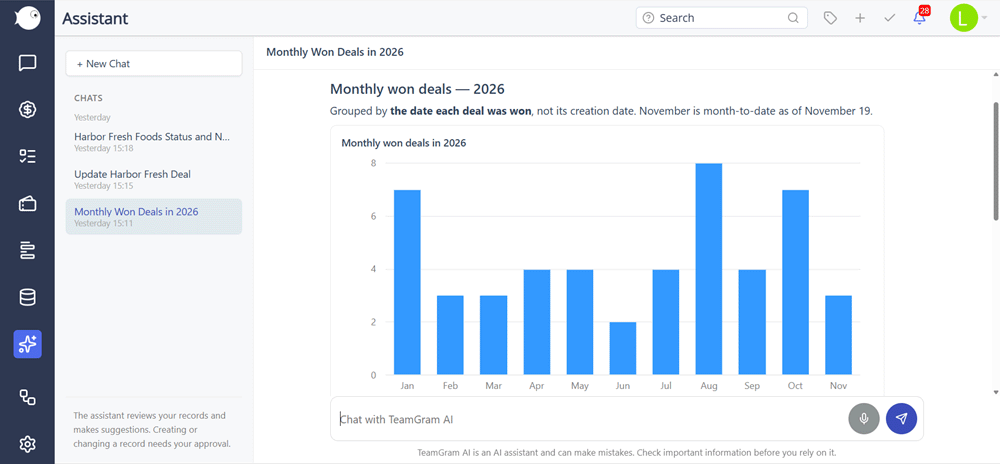
To go a step further, turn the report into a dashboard. The Assistant builds a dashboard next to the chat that shows won amounts and win rates by sales rep, and open opportunities by stage.
“Turn this into a team sales dashboard.”
You can save the dashboard to Performance Monitor and open it again whenever you want to track your team’s performance.
Voice Commands and the Assistant Inside Your Records
You don’t even need to type to talk to the Assistant. Click the microphone icon in the chat box and say your question; your words turn into text instantly. Logging a note after a meeting or getting ready for your next one now takes just a few seconds.
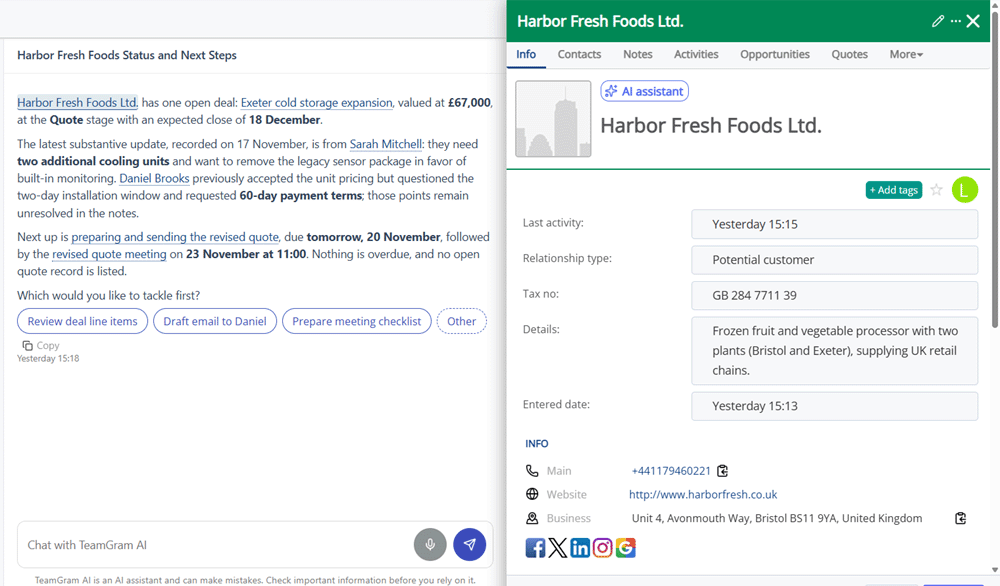
The Assistant isn’t only in the left menu; it’s everywhere in the CRM. With a customer record open, click the AI assistant button on the record. The Assistant opens next to the record, and you can ask about that customer without leaving the page.
You Stay in Control
The Assistant prepares the work; you make the final call.
- You approve every change. The Assistant shows its proposal before it creates or updates a record; nothing changes until you click Save.
- Your permissions apply. The Assistant can only access the records you can see and edit in TeamGram CRM.
- Your account rules stay in place. Required fields, quote approval processes and locked records also apply to actions taken through the Assistant. If information is missing, the Assistant asks you for it.
- It’s clear who did what. Actions you take with the Assistant are recorded under your name and show up to your teammates as your actions.
TeamGram CRM Is Now in Claude and ChatGPT
If your team already spends part of the day in an AI tool like Claude or ChatGPT, you can bring your CRM there too. With TeamGram CRM MCP, these tools connect to your TeamGram CRM account, so you can look up and update your customers, opportunities and activities without leaving the chat.
MCP (Model Context Protocol) is an open standard that lets AI tools connect securely to other apps. You can use TeamGram CRM MCP with Claude, ChatGPT, Gemini and other AI apps that support MCP.
“Which opportunities are closing in TeamGram this month?”
Setup takes a few minutes: add the server address as a custom connector in the AI tool you use, then sign in with your TeamGram CRM account. The same rules apply to this connection: only the records you can see are accessible, and your account rules stay in place. For step-by-step setup, see our TeamGram CRM MCP support article.
TeamGram CRM MCP is available on the Premium plan.
How Is It Priced?
The Assistant is included in all TeamGram CRM plans, and TeamGram CRM MCP is available on the Premium plan. The Assistant uses AI credits.
| Feature | Plan |
| Assistant, voice commands and dashboards | All plans |
| TeamGram CRM MCP (Claude, ChatGPT and others) | Premium plan |
| Additional AI credits | All plans |
You manage AI usage from one place. On the Control Panel > AI page, you can:
- Choose who on your team has access to AI features.
- See how many credits each person has used in the Credit Usage Report.
- Keep track of how many credits you have left.
- Buy additional credits when you need them.
The Journey Continues
AI isn’t new to TeamGram CRM. Features like lead enrichment, voice notes and sentiment tags have been making your teams’ work easier for a while. The Assistant and TeamGram CRM MCP are a big new chapter in that journey. We want to shape what comes next together with you.
What do you use the Assistant for most? Where do you get stuck? What else would you like AI to do for you in TeamGram CRM? Please send your thoughts to support@teamgram.com; they mean a lot to us.
Finally, thank you to the customers who tried the Assistant first during the beta, pointed out what was missing and helped shape the product with their ideas. Many details in today’s release came from their feedback.
Open the Assistant from the left menu and ask your first question.